SRT vs VTT: Which Subtitle Format to Use, and How to Add Subtitles to YouTube
SRT or VTT? Learn the differences, when to use each format, how to upload subtitles to YouTube, fix auto-caption errors, and translate subtitle files correctly.
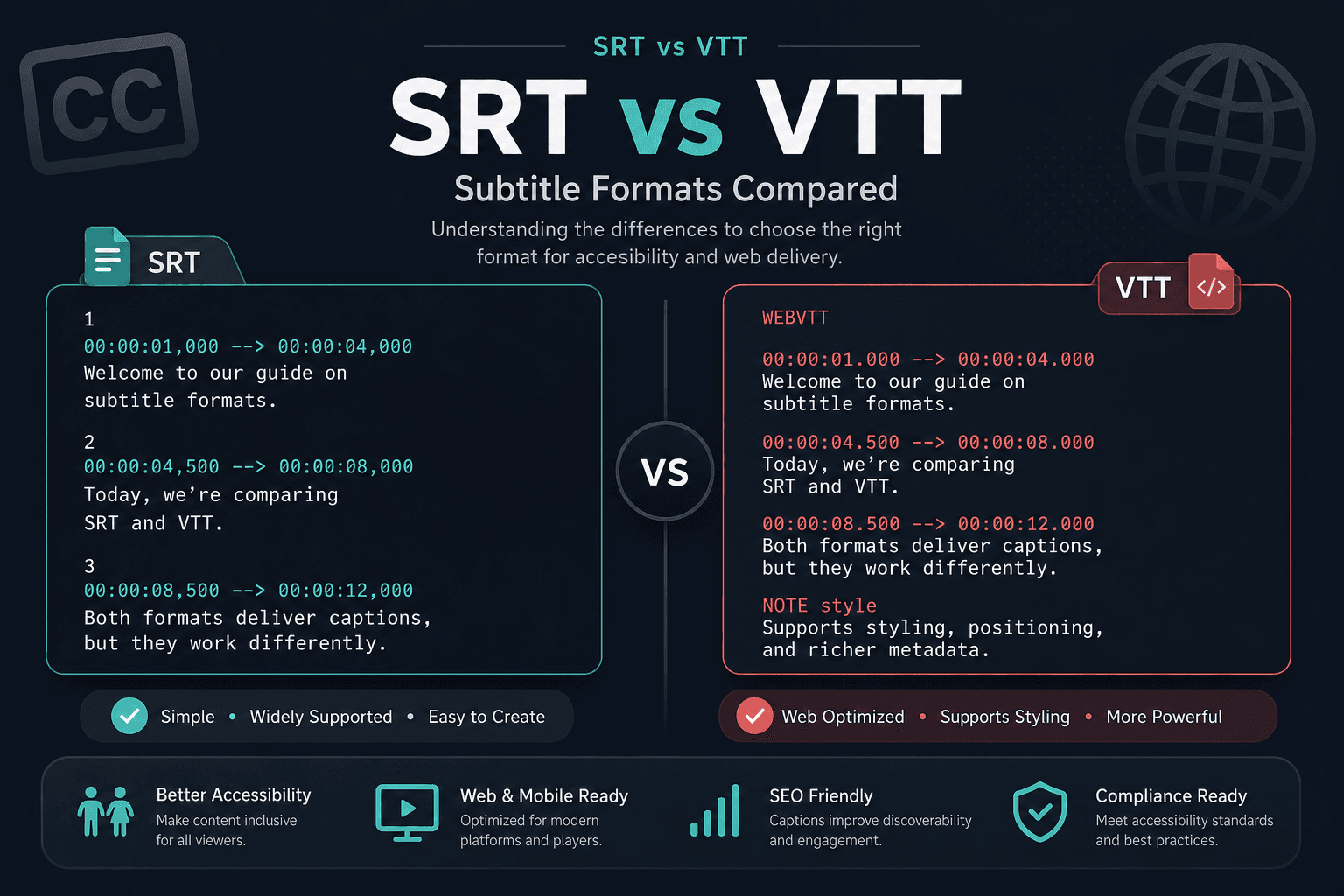
Two subtitle formats cover almost everything you'll encounter: SRT and VTT. They look similar, they're both plain text, and they're not interchangeable in every context.
Short answer: use SRT for video editors, media players, and uploading to YouTube. Use VTT for captions on your own website. Here's the detail, plus the workflow for getting subtitles onto a video and translating them.
What each format looks like
SRT (SubRip) — numbered blocks, comma before the milliseconds:
1
00:00:02,400 --> 00:00:05,100
Welcome back to the channel.

2
00:00:05,300 --> 00:00:08,900
Today we're covering three techniques.
VTT (WebVTT) — a required header line, period before the milliseconds, cue numbers optional:
WEBVTT

00:00:02.400 --> 00:00:05.100
Welcome back to the channel.

00:00:05.300 --> 00:00:08.900
Today we're covering three techniques.
Three differences to notice: VTT opens with `WEBVTT`, VTT uses a period as the decimal separator where SRT uses a comma, and VTT can omit the sequence numbers.
That comma-versus-period difference is the single most common cause of a subtitle file being rejected. Renaming a `.srt` to `.vtt` doesn't convert it.
Which to use
Use SRT when:
- Importing into Premiere, Final Cut, DaVinci Resolve, or any editor
- Playing back in VLC, MPV, or a media player
- Uploading to YouTube, Vimeo, or most social platforms
- You're unsure — it has the widest support
Use VTT when:
- Captioning HTML5 video on your own site
- You need styling, positioning, or vertical text
- You're working with web accessibility requirements
VTT is the more capable format — it supports CSS styling, cue positioning, and metadata that SRT has no concept of. SRT is the more compatible one. For most people that trade favours SRT, because the extra capability only matters for web playback.
Adding subtitles to a YouTube video
From a file:
- YouTube Studio → Subtitles → select the video
- Choose the language → Add → Upload file
- Pick "With timing" if your file has timecodes, "Without timing" for plain text
- Review and publish
The "without timing" option is genuinely useful: YouTube force-aligns a plain transcript to the audio automatically. If you have the words but not the timings, this saves considerable work.
From auto-captions: YouTube generates automatic captions for most uploads. You can edit them in Studio rather than starting fresh, which is usually faster than writing from scratch — though see the accuracy section below.
During upload: subtitle files can be attached in the upload flow before publishing.
The auto-caption accuracy problem
YouTube's automatic speech recognition is strong on clear, single-speaker audio in a common accent. It degrades predictably outside those conditions:
- Proper nouns are the worst failure mode. Names of people, companies, and products get rendered several different ways within one video.
- Technical vocabulary — jargon, acronyms, chemical and medical terms.
- Overlapping speakers produce runs of text with no indication of who's talking.
- Background music reduces accuracy across the board.
- Accents and code-switching — speakers moving between languages mid-sentence tend to break the model.
- Punctuation is inferred from speech rhythm and is often absent or wrong.
The dangerous property of ASR errors is that they read plausibly. A wrong word that fits the sentence grammatically won't catch your eye on proofread. If you're publishing quotes, verify against the audio at the timestamp.
Cleaning a raw transcript efficiently
For a long video, this is fifteen minutes rather than several hours:
- Fix proper nouns first. One find-and-replace per name resolves most errors in a technical or interview video.
- Add paragraph breaks at topic changes. ASR output has none, and this is what makes it readable.
- Strip filler — "um", "uh", "you know", "like", repeated false starts. A pass on the four or five most common ones removes a lot of noise.
- Restore sentence boundaries and question marks.
- Label speakers if there's more than one voice.
Our transcript extractor returns plain text, timestamped text, SRT and VTT, so you can pull the format that suits the job rather than converting afterwards.
Translating subtitles
The workflow that works:
- Extract the SRT
- Translate only the text lines, leaving timecodes and sequence numbers untouched
- Save as UTF-8
- Upload to YouTube as a new language track
Two things to watch.
Encoding. Save as UTF-8 without a byte order mark. Any non-ASCII characters — accents, Arabic, Cyrillic, CJK — will corrupt if the file is saved as ANSI or Latin-1. This is the most common subtitle bug there is, and it shows up as question marks or garbage characters.
Text expansion. Translations change length. French and Spanish typically run 15 to 25% longer than English; German longer still. A line that fit comfortably in the original may not be readable in the time available. Where it's tight, condense the meaning rather than keeping every word — subtitles are read, not heard, and reading speed is the constraint.
Machine translation is a reasonable first pass for informational content and a poor final answer for anything where tone matters. Idiom and humour survive badly.
Common problems
Subtitles drift out of sync. Usually a frame rate mismatch — a file timed for 23.976 fps against a 25 fps export, or vice versa. Most editors and VLC can apply a global offset or stretch.
File rejected on upload. Check the decimal separator matches the format, that VTT has its header line, and that the file is UTF-8.
Characters display as question marks. Encoding. Re-save as UTF-8.
Lines appear on top of each other. Overlapping timecodes — one cue's end time falls after the next one's start.
Captions too fast to read. Aim for a maximum of roughly two lines and about 42 characters per line, held for at least a second. If a cue is shorter than that, merge or condense.
Common questions
Can I convert SRT to VTT?
Yes — add the `WEBVTT` header, change commas to periods in the timecodes. Any text editor handles it with one find-and-replace.
Does YouTube accept both?
Yes, along with several other formats. SRT is the safest choice.
Do subtitles help my video's reach?
They make the video accessible to more viewers and give YouTube text to work with. The larger effect is usually watch time from viewers who can't or won't play audio.
Should I burn subtitles into the video?
For short-form vertical content, usually yes — most of that viewing is silent and burned-in captions are standard. For long-form, use a subtitle track so viewers can turn them off and so other languages can be added.
What about SSA and ASS files?
More capable formats used mainly in anime fansubbing, with support for complex styling. Overkill for most purposes, and less widely supported.